General
- Click the ‘Edit’ button on the training/program list screen. Then Click the arrow button in libraries (training)/program contents (program) to change the order of learning contents.
Elearning will only count user’s attempt as finished when users watch the video or read through the PDF to the end without skipping it.
- In Program, users can only unlock the next trainings by completing the previous training/article/library in the list.
Make sure that the file name is no longer than 512 letters, and contact us with support@earlyconnect.com for any additional help if you still have issue.
- First, upload the PDF file you would like to have agents download in ‘Object List’. Then, copy the “Object URL” and paste it on any HTML section of library/article/training where you want your users to download it.
The latest version of elearning application is available in following
URL: http://www.earlyconnect.com/elearning/
- Set the search parameter as “All” instead of “not finished” on assessments page. If agents still can’t find the test material, make sure that they are assigned to the training/program/article.
“Text Entry” question type will only count input that exactly matches with answer in
“Correct Answer”.
Answer in either upper or lower case letter will be considered as a same answer.
- Go to announcement in Administration page, and click new to create new announcement that will appear upon user login.
- Click the ‘Edit’ button next to the training in the training list. Then, go to ‘Target Users’ section and uncheck the ‘Allow only the target users to access the contents’. Agents not registered in the training will be able to access the training via its URL.
On login page, there is “Forgot User ID” and “Forgot Password” buttons that help your user to retrieve their User ID and reset password. Both procedure requires email address.
Technical
First, re-upload the video.
If there is still an issue, press F12, and sent us the message under the
“Console” in developer page to support@earlyconnect.com.
Make sure you have access to http://amp.azure.net
Create new account on “New Registration” on EarlyConnect Website
You will receive notification when your new admin account is created for elearning. Then you will have access to e-learning admin application to manage your e-learning website.
1Click the image upload button in library content edit screen.
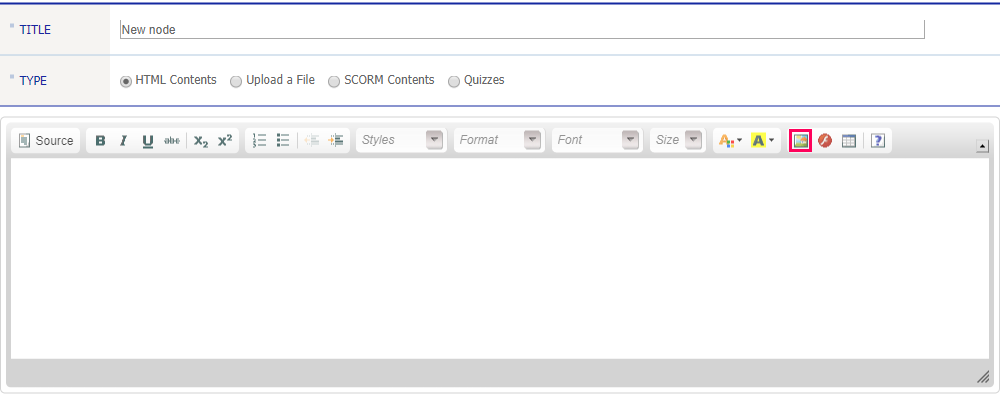
2Select the ‘Choose File’ under ‘Upload’ tab, and choose the file you like to upload.
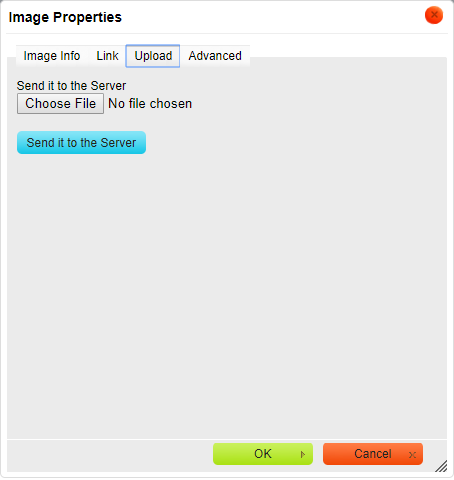
3After selecting the file, click the ‘Send it to Server’.
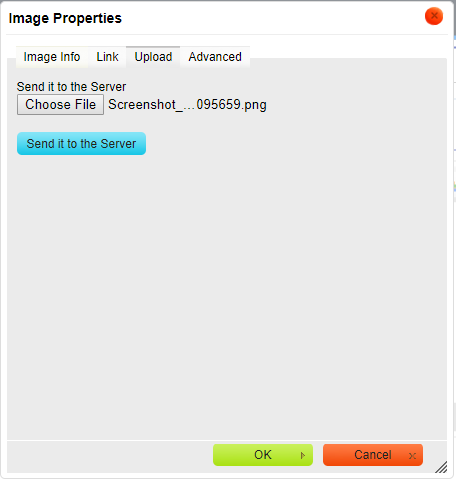
4When the image is successfully saved in the server, there will be a popup message.
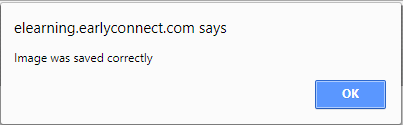
5Click the ‘OK’ to view the preview of the image and its URL. Click ‘OK’ to finish the upload.
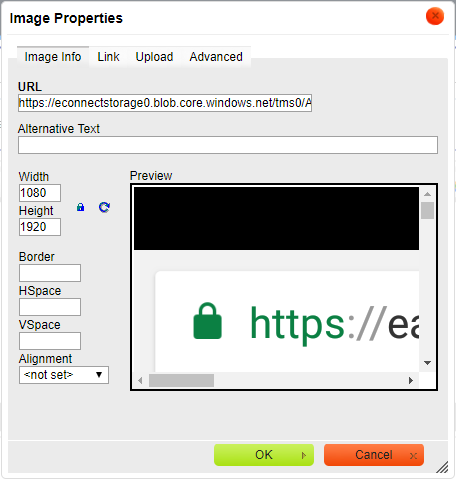
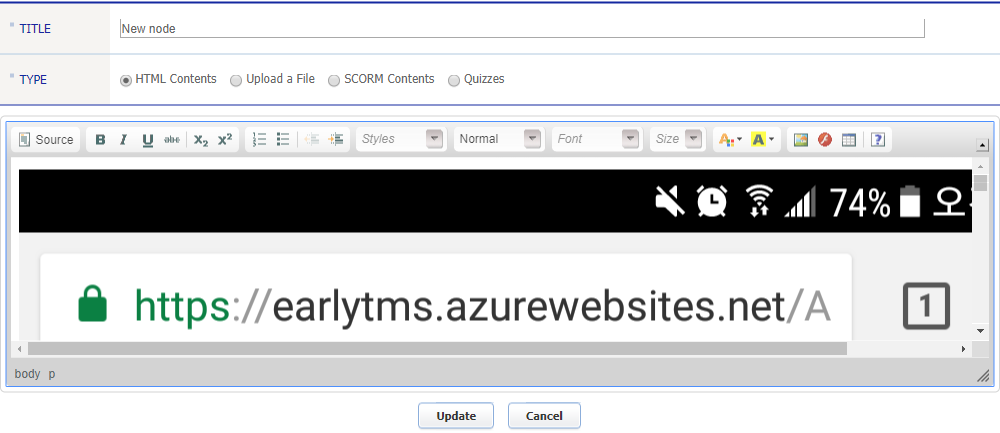
6Upload procedure is complete.
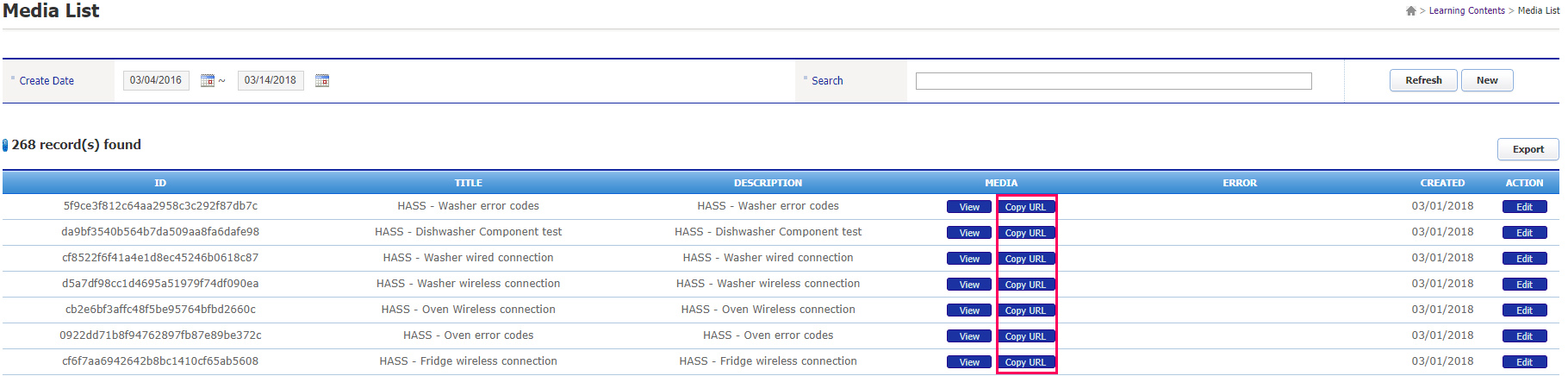
1Copy the media URL from the media list by clicking ‘Copy URL’.
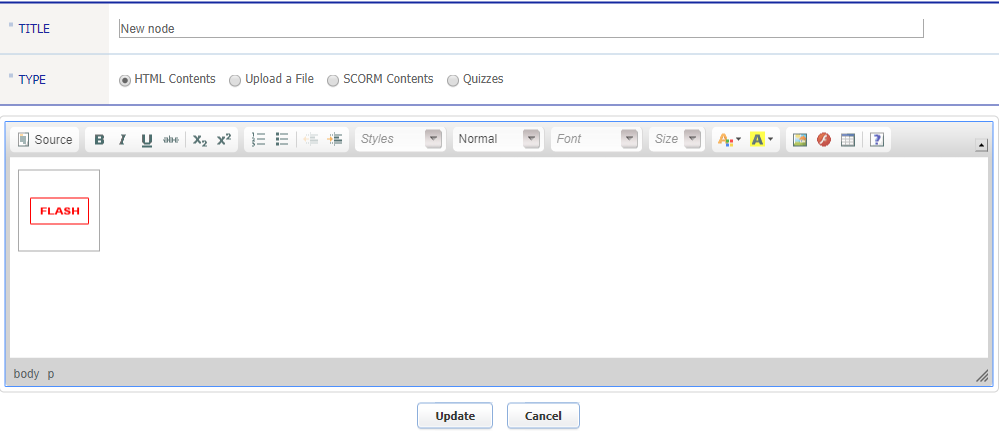
2Click the ‘Flash’ button on the content edit screen.
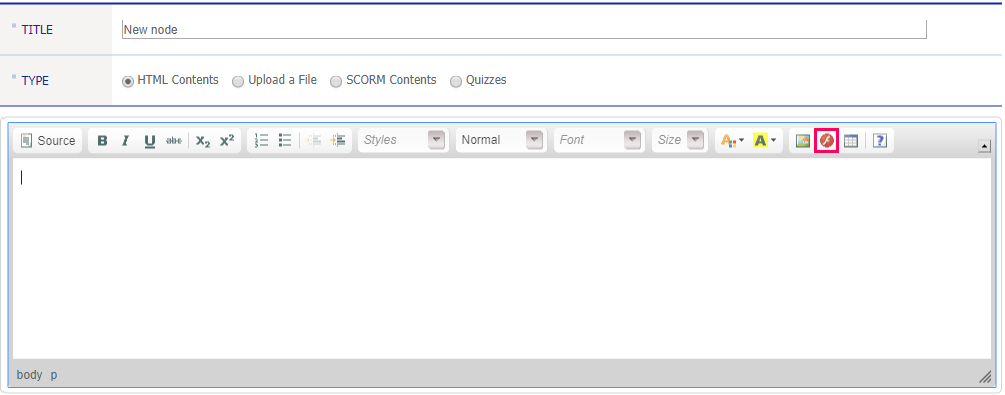
3Paste the medial URL in ‘URL’.
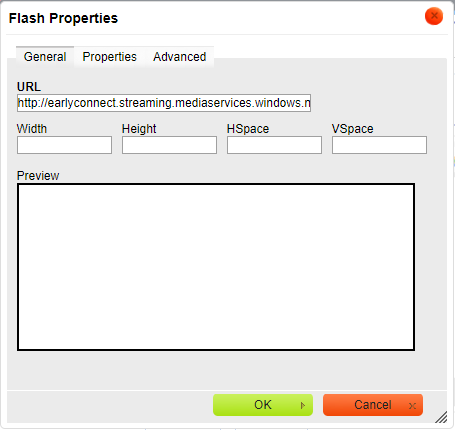
4Once you see the flash icon, click ‘update’ to finish uploading.